
How to Remove Location From Photos on a Phone
Stop your photos revealing where you live: remove GPS from existing photos, turn off location tagging, and check that sharing apps strip it.
By Mudasir Ahsan (Founder) · · 7 min read
Facts checked against official sources on
On this page
To remove location from a photo on iPhone, open it in Photos, tap the More button, then Adjust Info > Adjust Location > No Location. For a single share, turn off Location under Options in the share sheet instead. On Android, Google Photos can't delete a location your camera saved, so strip the metadata with a tool before you share, and switch off the camera's location setting so new photos aren't tagged. Then check the file, because some of these steps only hide the coordinates in one app.
That last point decides which method to trust. A photo's location sits in two places: inside the file, and in whatever your gallery app remembers about it. Clearing the second does nothing to the first.
Where the coordinates live
When your phone's camera has location access, it writes GPS coordinates into every photo, in the file's hidden metadata (the EXIF data). Nothing in the picture shows them. They travel with the file wherever it's copied, and that's why they get shared by accident.
Apple's personal safety guide spells out the result: when photos with location metadata are shared, the people you share them with "may be able to access the location metadata and learn where it was taken."
Photos taken at home are the ones to worry about. A sofa you're selling or a child's first day at school can carry coordinates precise enough to point at your house. Our explainer on what EXIF data reveals lists what else is stored in the file.
A gallery app also keeps its own record of where each photo was taken, for its map and its search. Edit the place in the app and you may only have edited that record. So my rule is this: for anything going public, change the file, then look at the file.
How to remove location from photos on iPhone
Apple gives you two controls, and they do different jobs. The share sheet removes the location from the copy you send. Adjust Location removes it from the photo in your library.
From the copy you share
These steps are from Apple's guide:
- Open Photos and select one or more photos.
- Tap the Share button.
- Tap Options near the top of the share sheet.
- Turn off Location. Location Not Included appears above the Options button.
- Share the photos as usual.
Your library copy keeps its location, so Memories and the map still work. That's the reason to prefer this route for everyday sharing. Its weakness is that the switch applies to one share only. Look for the "Location Not Included" label each time before you tap send.
From the photo in your library
- Open Photos and open the photo.
- Tap the More button.
- Tap Adjust Info, then Adjust Location, then No Location.
On a Mac, select the photos in Photos and choose Image > Location > Hide Location. Notice the word "Hide". The same menu offers Revert to Original Location, so the original isn't permanently erased from your library. If you export a file from a Mac to share it, check the exported copy first (the last section shows how).
How do I stop my iPhone adding location to photos?
Take away the Camera app's location permission. Apple notes that location metadata "can be collected only if your Camera app has access to Location Services."
- Open Settings.
- Go to Privacy & Security > Location Services > Camera.
- Tap Never.
You lose something for it. New photos won't appear on the map in your Photos library, and a search like "photos from Lisbon" won't find them. Many people leave location on and turn it off only when they share. Either works if you chose it on purpose.
Can Google Photos remove the location from a photo?
Only sometimes, and a lot of advice online gets this wrong. The usual tip is to open the photo, edit its location and remove it. Google Photos Help says you can only change or remove locations that Google Photos estimated or that you added manually. If the location was saved by your camera, Google Photos can't update or remove it.
Google is also plain about what happens to an edited photo that leaves the app. Download it and email it, and "the original location your device saved shows without any edits you made in Google Photos."
This is the two-places problem from earlier. An edit in Google Photos changes Google's record. The coordinates your camera wrote are still in the file, and the file is what you send. On Android, two things are in your control.
Sharing inside Google Photos
When you share an album, open it, tap Share > Options and turn Share photo locations off. Google says new conversations in Google Photos don't include location details by default. Partner sharing is different: Google states that all photos you share that way include location details.
Turn off location in your camera
The setting is in the Camera app, and each manufacturer gives it a different name. Google's camera location settings page lists them:
| Phone brand | Camera setting to turn off |
|---|---|
| Google Pixel | Save location |
| Samsung | Location tags |
| Xiaomi | Save location info |
| OnePlus | Store location data |
| Motorola, Sony | Save location |
| OPPO | Location |
| Vivo | Geographic locations |
| Nokia | Location tag |
Open your camera, tap the settings gear and look for that name. Only new photos are affected. The ones you already took keep their coordinates and have to be cleaned before you share them.
Remove location from a photo online
For photos that are already tagged, a metadata remover is the most dependable option on any device. It takes the GPS block out of the file itself, where the app settings above only hide it in one place.
Our free EXIF and GPS remover runs inside your browser, so the photo isn't uploaded anywhere:
- Open the tool and select one or more JPG, PNG or WebP photos.
- Look at the Before panel. A red warning appears if the photo contains the place where it was taken.
- Download the clean copy. Your original stays unchanged on your device.
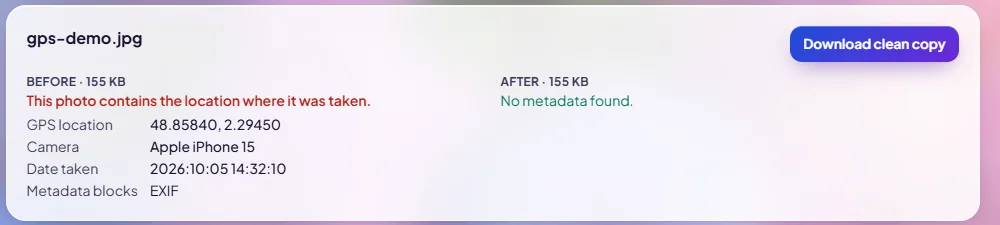
Our test photo, which we tagged with sample camera details and the Eiffel Tower's coordinates. After cleaning, nothing is left.
The tool cuts out the metadata blocks without re-encoding, so the image quality is identical. Two harmless things stay. One is the color profile, so colors don't shift. The other is the rotation flag that tells apps which way up to show a portrait photo.
It has a real gap: it doesn't accept HEIC, the iPhone's default format. For HEIC photos, use the iPhone share sheet, set the camera to save JPG, or convert them with our HEIC to JPG converter, which also leaves the location behind.
If you were going to share the photo as a link anyway, the PictureToLink uploader removes all metadata, including GPS, before the image is stored. Anyone with the link can view the image, so look at the picture itself for identifying details before you upload.
How to check the location is gone
It takes less than a minute. Nothing else tells you a step worked.
On an iPhone, open the cleaned photo in Photos and swipe up. No map and no place name means the location is gone from that copy. For a shared copy, send it to yourself and check the file you receive, or ask the recipient to look.
Android is less clear. Open the photo in Google Photos and swipe up for details, but remember that a location shown there may come from the file or from Google's estimate. The file itself is the more reliable check.
A computer reads the file directly. On Windows, right-click it, choose Properties and open the Details tab, then look for the GPS section. On a Mac, open the file in Preview and use the Inspector.
Or drop the cleaned file back into the metadata remover. If no GPS warning appears, you're done. Our guide on how to check photo metadata covers each device in more detail and explains what the other fields mean.
What removing GPS doesn't fix
A clean file can still give the place away. Google's own help page warns that people can still guess a location from landmarks, and house numbers, street signs, school uniforms or the view from a window do the same job.
Sharing routes differ too. Some apps remove metadata from the photos they process. Others pass the original file through untouched, especially when you send a photo "as a file" or "as a document". Our post on which apps remove photo metadata goes through what each platform documents.
Be strictest with photos of your home that are going public: an item for sale, a property listing, anything with children in it. Check those every time. A photo headed to a public Reddit post gets the same treatment. Clean it first, then follow how to post images on Reddit.