
How to Get an Image URL on Any Device (2026 Guide)
Get a shareable URL for any image: copy the address of an online image, or upload a photo from your phone or PC and get a direct link in seconds.
By PictureToLink Team · · 9 min read
Facts checked against official sources on
On this page
How you get an image URL depends on where the image is. If it is already on a website, right-click it on a computer and choose Copy image address (or your browser's equivalent), or open the image on its own and copy the address bar. If the photo is on your phone or computer, it has no URL yet: upload it to an image host such as PictureToLink, and you get a link straight away that works on any device.
What is an image URL?
An image URL is the web address of an image file. Paste it into a browser and you see the picture on its own, with nothing around it. Paste it into a chat app, a forum post or a form that asks for an "image URL" and the picture appears there.
For example:
https://picturetolink.com/i/abc123.jpg
Several things look like image URLs but are not:
| What you have | Is it an image URL? | Why |
|---|---|---|
A link ending in .jpg, .png, .gif, .webp or .avif | Usually yes | It points straight at the image file |
| A link to a web page that shows the image | No | It is a page URL. The image sits inside the page with other content. |
A Google Images share link starting https://share.google/ | No | It opens Google's own result page, not the image file |
| A Google Drive, iCloud or Google Photos sharing link | Usually no | These open a viewer page, often with a sign-in or download prompt |
An address starting blob: or data: | No (not shareable) | blob: addresses only exist inside your own browser tab. A data: address is the image itself encoded as a long text string. |
A file path such as C:\Users\...\photo.jpg | No | It only exists on your computer |
Not every image URL ends in a file extension. Some sites serve images from addresses with no extension at all. The reliable test is to open the link in a private browser window: if you see just the image, it is an image URL.
How do I copy the URL of an image that is already online?
On a computer, right-click the image and choose Copy image address (some browsers say Copy Image Link), or open the image in a new tab and copy the address bar. On a phone, touch and hold the image and copy its address. You do not need to download it. Please only reuse images you have permission to use.
On a computer
- Right-click the image.
- Choose Copy image address. Google's guide to searching with an image uses this wording for Chrome. Other browsers word it slightly differently, for example Copy Image Link.
- Paste it wherever you need it (Ctrl+V, or Cmd+V on a Mac).
If the menu has no copy option, choose Open image in new tab instead, then copy the address from the address bar of that tab.
Images from Google search results
Google's help page on finding the URL of a page or image describes clicking an image in Google Images, then More > Share, and clicking the link under "Click to copy link." Google notes that this link starts with https://share.google/.
That share link opens the result on Google. It is fine for sending to a friend, but it is not the image file, so it will not work in a forum [img] tag or an "image URL" field. To get the image's own address, click through to the website that published the image, then use right-click and Copy image address there.
On a phone
Phone browsers do not all offer the same menu, but the method is similar:
- Touch and hold the image.
- Look for an option to copy the image's address or link. If there is none, choose an option to open the image in a new tab.
- If you opened it in a new tab, tap the address bar and copy the URL.
Be careful with a plain Copy option. On many phones it copies the picture itself rather than its address. A quick way to check: paste into a notes app. If a picture appears, you copied the image. If text starting with https:// appears, you copied the URL.
How do I get a URL for a photo on my phone or computer?
A photo stored on your device has no web address, because no one else can reach it. To get a URL, the image has to be uploaded to a server that everyone can reach. That is what an image host does. Upload the photo to one, such as PictureToLink, and you get a link to copy straight away.
With PictureToLink there is no account to create:
- Go to the PictureToLink uploader.
- Drop your image onto the page, tap Choose images, or paste a copied image with Ctrl+V (Cmd+V on a Mac). JPG, PNG, WebP, GIF and AVIF files up to 25 MB are accepted, up to 20 at once.
- When the upload finishes, pick a format from the link menu and tap Copy link.
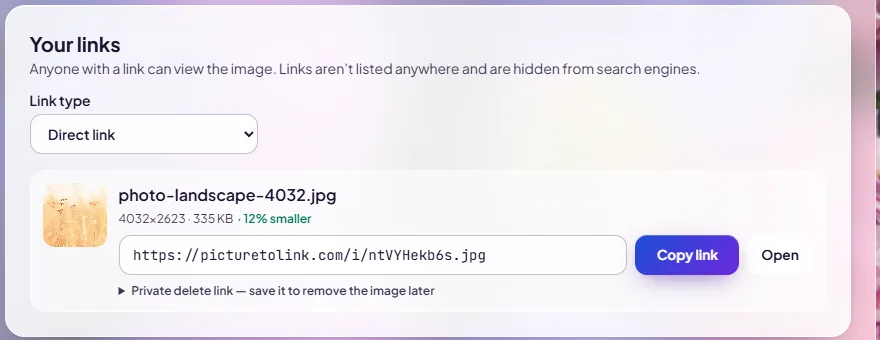
What you see after uploading one of our test photos. The direct link ends in .jpg, so it works anywhere that shows an image from a URL.
Before the image is stored, it is compressed, rotated the right way up and stripped of hidden metadata such as GPS location and camera details. It is stored at up to 4096 pixels on the longest side. You also get a private delete link, and you can set the image to delete itself after 1 hour, 1 day, 7 days or 30 days. Without an expiry it stays online while people view it and is removed after 12 months without views.
Anyone with the link can see the image, so do not upload anything private.
iPhone and Android step by step
iPhone
- Open Safari (or Chrome) and go to picturetolink.com.
- Tap Choose images, then choose your photo from the photo library.
- Wait for the upload bar to finish.
- Tap Copy link next to the photo, then paste the link into Messages, WhatsApp, email or wherever you need it.
iPhones can save photos in the HEIC format, which PictureToLink does not accept. If your photo is refused, see our guide on making iPhone save photos as JPG, or convert the photo to JPG first.
Android
- Open Chrome (or your usual browser) and go to picturetolink.com.
- Tap Choose images and pick the photo from your gallery or files.
- When the upload finishes, tap Copy link.
- Paste the link into your message, post or form.
Windows and Mac
Drag the file from your desktop or folder onto the upload area, or take a screenshot and paste it straight onto the page with Ctrl+V or Cmd+V. If you want the picture to be clickable on a web page or in an email, our guide on making a picture a link shows how.
Direct link vs viewer link
After uploading you can copy several kinds of link. The two you will use most:
| Direct link | Share page (viewer link) | |
|---|---|---|
| Looks like | https://picturetolink.com/i/abc123.jpg | https://picturetolink.com/v/abc123 |
| Opens | Just the image file | A simple page showing the image |
| Use it for | Forums, chat apps, "image URL" fields, embed codes | Sending a photo to a person |
The menu also offers ready-made HTML (websites and HTML emails), BBCode (forums) and Markdown (GitHub and documentation). Each of these is the direct link wrapped in the right code. Our guide to direct links, viewer links and embed codes shows which works where.
Keeping an image URL working
An image URL only works while the file stays at that address. A few habits save you from broken links later:
- Use a host you control. If you link to an image on someone else's website, it can disappear or change whenever they edit their site. Uploading your own copy means the link only changes when you decide.
- Match the lifetime to the job. For a one-off, set an auto-delete time. For something you will post in a forum signature or a long-running document, leave it on "Keep while in use", and remember that PictureToLink removes images after 12 months with no views at all.
- Keep the original. No free host can promise to keep files forever, and we do not either. Keep your own copy of anything that matters.
- Save the delete link. If you ever need to take the image down, the delete link is the only way to do it, because there is no account to sign in to. It is also remembered in your browser's "Recent uploads" on the device you used.
- Upload a new version instead of editing. Each upload gets its own link. If you change the picture, upload the new version and replace the link where you posted it.
Do image URLs work in emails and documents?
Yes, as text. Paste a share page link into an email or document and the reader clicks it to see the image. Some email apps hold back images loaded from links until the reader allows them, so for important pictures a link to the share page is more dependable than an embedded image.
Why does my image link open a page instead of the image?
An image link usually opens a web page because you copied the page address or a share link rather than the image's own address. Google Images share links, cloud drive links and share pages all open a web page. Copy the image address instead, or on PictureToLink switch the link menu to Direct link.
If you pasted a link and got a web page, a broken image icon or a sign-in prompt instead of the picture, work through these checks:
- You copied the page address, not the image address. Go back to the image, right-click it (or touch and hold on a phone) and copy the image's own address, or open the image in a new tab first.
- You used a share or viewer link where a direct link is needed. Google Images share links, cloud drive links and share pages all open a web page. Use a direct link instead. On PictureToLink, switch the link menu to Direct link.
- The address starts with
blob:ordata:. These cannot be shared. Save the image to your device, then upload it to get a real URL. - The link needs a sign-in. Private cloud folders and some social networks only show images to signed-in users. Upload a copy to an image host instead.
- The site blocks other websites from showing its images. Some sites refuse requests that come from other domains. Our explainer on hotlinking covers why.
- The image was deleted or expired. If the link used to work, the image may have been removed by its owner or by the host.
- Extra characters came with the copy. Spaces, line breaks or tracking text after the file name can break a link. Paste it into a browser on its own to test.
For a fuller checklist, including images that will not load on websites and in emails, see our guide to broken image links.
Next step
If the image is already online, copy its address and test it in a private window. If it is on your phone or computer, upload it to PictureToLink and copy the direct link for apps and forums, or the share page link for people.